Gaming TV vs Monitor 2026: Which Display for Content Creators Streaming?
Expert comparison of gaming TVs vs monitors for streamers and content creators. Latency, color, size, audience appeal analyzed.
The Display Dilemma: TV vs Monitor for Streaming
The single biggest question content creators face: should I stream with a gaming TV or gaming monitor? The choice affects input responsiveness, what your audience sees, and the professionalism of your setup.
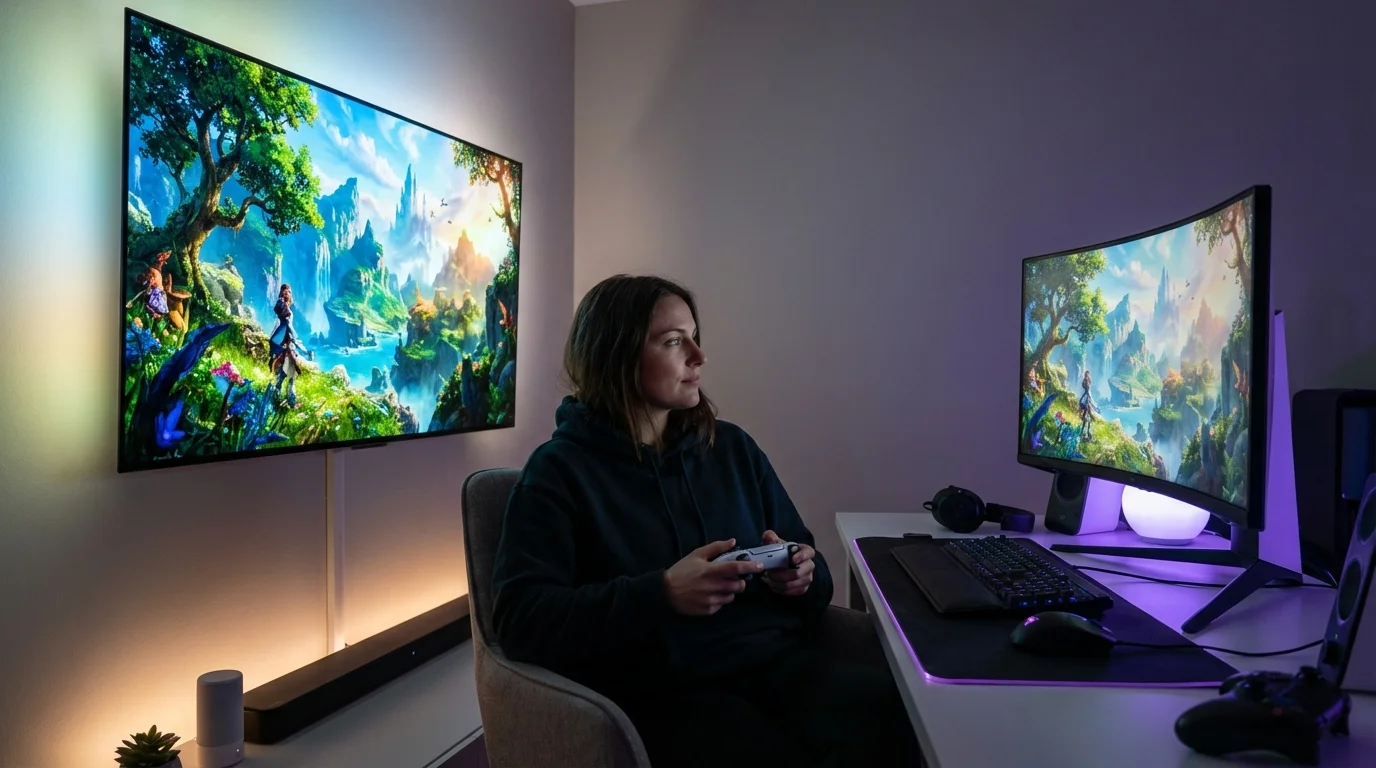
The answer isn't either/or—most professional streamers use both. A 27-32" monitor for actual gameplay and chat management, plus a 4K TV visible to camera for showing off high-quality visuals to your audience. This guide breaks down the pros/cons of each and shows you the optimal setup for different streaming styles.
Gaming TV Advantages for Streamers
- 📺Massive Screen = Audience Impact: A 65-75" TV behind your desk looks impressive on stream. Viewers see massive, vibrant visuals. This is why esports arenas and pro streamers use big screens.
- 🎨4K + HDR Color: Modern 4K TVs produce richer colors and brightness than monitors. If showcasing creative work or visually-driven content, TVs make it pop.
- 🎮Immersive Single-Player Gaming: For cinematic games (narrative, story-driven), a large TV creates the intended experience. Better for player immersion.
- 💰Value at Large Sizes: A 55-65" 4K TV costs $400-700. A 55" gaming monitor would cost $2000+. For sheer screen real estate, TVs win on price.
Monitor Advantages for Streamers
- ⚡Low Latency (1-4ms): Competitive advantage for reaction-time games. You see your input 20-45ms faster than on a TV. Critical for esports streamers.
- 🪟Multi-Window Workflow: Split OBS, chat, Discord, and game on one screen. TVs can't do this—they display single full-screen only. Essential for smooth streaming.
- 💻Desk-Focused Ergonomics: 27-32" monitors position at eye level for 8-12 hour sessions. TVs require 6+ feet viewing distance, creating neck strain at desk.
- 🎯Precision Work: Monitors excel at detail work, text reading, and color-critical tasks. Better for design-focused content creators.
- 💡Desk Space Efficient: Arm-mounted 27-32" monitors don't dominate desk space. TVs are wall-mounted, leaving desk surface clear.
TV vs Monitor Detailed Comparison
| Specification | Gaming TV | Gaming Monitor | Streamer Pick |
|---|---|---|---|
| Response Time (Latency) | 20-50ms (noticeable input lag) | 1-4ms (competitive advantage) | Monitor (better control, camera preview) |
| Screen Size Typical | 55-85 inches (audience impact) | 27-32 inches (workspace) | Combination (monitor primary + TV secondary) |
| Color Accuracy (sRGB) | 100% (rich, vivid colors) | 95-99% (professional standard) | Monitor (camera sees it more accurately) |
| Refresh Rate Available | 60-120Hz (newer models) | 60-360Hz (competitive gaming) | Monitor (60Hz minimum sufficient) |
| Typical Price Range | $400-1200 (55-75 inch) | $150-400 (27-32 inch) | Monitor primary + budget TV secondary |
| Resolution Typical | 4K (2160p) standard now | 1440p or 4K (expensive) | 1440p monitor (balanced cost/quality) |
| Multi-Window Support | Poor (single full-screen image) | Excellent (split windows, multi-app) | Monitor (OBS + chat + game) |
| Viewing Distance | 6-10 feet ideal | 20-28 inches from eyes | Monitor (desk work distance) |
| On-Camera Size Impact | Massive (fills screen, impressive) | Moderate (professional, readable) | TV for visual impact, monitor for work |
| Best Mounting Position | Wall-mounted behind/beside desk | Arm mount on desk (adjustable) | Both strategies used by pros |
The Pro Streamer Setup: TV + Monitor Combo
Most professional streamers use both. Here's the setup:
Primary Display: 27-32" Monitor (1440p)
Your actual work area. Runs OBS, game, chat, Discord. Position at eye level for ergonomics. This is where you look 90% of the time.
Secondary Display: 55-65" 4K TV (wall-mounted)
Positioned where your camera can see it. Shows viewers your gameplay or creative work in high quality. Turned slightly (15-30°) toward camera, positioned behind or beside your desk.
Camera Angle: Captures Both
Your webcam sees: you (centered) on the left, TV/display on the right showing gameplay at high quality. This is the professional streamer look.
Budget: ~$600 total
27" 1440p Monitor: $250-300 + 55-65" 4K TV: $350-400. Together they cost less than a single high-end gaming monitor.
Choose Based on Your Content
Use a Monitor if You Stream:
- ✓Esports/competitive games (fast reaction needed)
- ✓IRL chatting with chat (lots of text, OBS widgets)
- ✓Design/coding (need detail and multiple windows)
- ✓Single camera, no show-off display needed
Use a TV if You Stream:
- ✓Story-driven/cinematic games (immersion focused)
- ✓Creative/visual content (design, art, music)
- ✓Want maximum visual impact for your audience
- ✓Console gaming (less multi-window software needed)
Optimizing Display Positioning for Camera
What matters most: how your display appears on camera. Professional streamers position displays so viewers see both the streamer and high-quality gameplay/visuals side-by-side.
- Angle consideration: Position monitor/TV at 10-15° toward camera, not straight behind you. This frames better and lets viewers see both you and your content.
- Reflection management: Use anti-glare screens if display reflection appears on your face/camera. Adjust lighting to prevent harsh monitor glow.
- Visible workspace: Leave 12-18" of desk visible below camera. This shows your setup is real and grounds the space.
- Backdrop consideration: If using a TV behind desk, position it so the camera sees TV content + your desk + you. Professional pyramid framing.
Frequently Asked Questions
What is the main difference between gaming TVs and monitors?
Gaming monitors prioritize response time (1-4ms latency) for competitive gaming and input lag sensitivity. Gaming TVs prioritize immersion, size (55-85"), and color vibrancy but have higher latency (20-50ms). For streamers, monitors offer better color accuracy; TVs offer bigger audience appeal.
Do streamers prefer monitors or TVs for content creation?
Most streamers use monitors for primary display due to lower latency and multi-window workflow. However, many use a secondary 4K TV for audience preview—the camera captures your screen and environment differently than you see it. The TV shows what viewers actually see.
Is 4K important for gaming and streaming?
For streamers, 1440p (1080p minimum) is sufficient since streams compress to lower resolution for viewers (most see 720p-1080p). 4K monitors are expensive ($400-800) and require more GPU power. Save budget for chair, desk, and lighting instead.
How does latency affect streaming quality?
Your personal latency (monitor/TV response time) doesn't affect stream quality for viewers—it only affects what you see. However, low-latency displays help you react faster to chat, alerts, and gameplay. Fast monitors (1-2ms) are better for esports streamers.
Can you use both a TV and monitor for streaming?
Yes, and many streamers do. Use a 27-32" monitor for your primary work area (games, OBS, chat) and position a 4K TV off to the side at angle where your camera can see it. This shows viewers your gameplay or creative work at higher visual quality.
What size display should streamers choose?
For primary gameplay: 27-32" monitors at 1440p. For audience display: 43-55" TV visible to camera. Anything larger than 32" at desk height creates viewing angle issues and reduces your field of view.
Does refresh rate matter for content creation?
Higher refresh rates (144Hz, 240Hz) smooth gameplay experience but don't improve stream quality for viewers. Streamers can broadcast at 60fps maximum (most platforms cap at 60fps). Save the money on higher refresh rate for a better chair or lighting.
What color accuracy matters for streaming?
Streaming relies on camera color reproduction, not monitor color accuracy. A monitor with 95%+ sRGB covers most use cases. If doing graphic design/editing content, invest in color-calibrated monitor ($300-400); for pure streaming, standard monitors ($150-250) suffice.
How do you optimize monitor position for camera angles?
Position monitor 12-18" from your camera at eye level (top of screen at 10° above horizontal). This prevents awkward head positioning and keeps you looking directly at the camera. Avoid extreme high or low positioning—affects on-camera posture visibility.
Should streamers use curved monitors or flat?
Curved monitors (1000R curve) enhance immersion but are expensive ($300-500). Flat monitors are standard, cheaper ($150-300), and show no distortion to viewers on camera. For streaming, flat is better; for single-player immersion, curved adds value.
Script Your Perfect Stream
Once you've chosen your display setup, ensure your streaming scripts and talking points hit the right length. Use textwordcount.com to check word counts on scripts, sponsorship reads, and donation alerts. Precision word counts keep your stream paced and professional.
Open Text Word Count ToolMore gear guides
Best Tech Gadgets 2026: Top Laptops, Tablets & Smart Devices
The best tech gadgets for 2026 — expert-tested laptops, tablets, and smart devices to upgrade your setup this fall.
18 min read
Best Budget Gaming Monitors Under $200: Complete Buyer's Guide 2026
Tested 25+ budget gaming monitors under $200. Top picks for 1080p gaming, fast refresh rates, and low input lag with hands-on testing.
12 min read
Best Productivity Apps 2026: 15 Expert Picks (Hands-On Tested)
Updated results from hands-on testing of 50+ productivity apps. Discover the top 15 picks that actually boost your output in 2026.
14 min read
The Perfect Partnership: How to Fuse AI & Human Creativity for Unstoppable Content
Master the art of combining AI-powered tools with human creativity to produce better, faster, and more strategic content.
7 min read
The Unfair Solopreneur: Compete With Companies 100x Your Size Using AI
You are not the underdog. Learn the 5 structural moats—Speed, Trust, Focus, Intimacy, and Firepower—that enterprise giants cannot copy, backed by Gallup and Census research.
25 min read